Wireframe a five-screen app with the wireframe skill
Install the bundled wireframe skill, prompt an agent with a screen list, and get a reviewable deck: SVG screens, a flow map, and a published HTML viewer.


This guide takes a one-line app idea to a wireframe deck your team can review: five desktop screens, five mobile variants, a flow map, and a browsable HTML viewer, drawn by an agent with the wireframe skill that ships in Paperclip v2026.609.0. Use it when you want the structure argument before the build argument: scoping a new app or feature, or putting a multi-screen flow in front of your team or board as something they can point at. The worked example is real: the weather-app deck one of our own design agents produced, all eleven files of it.
Prerequisites
- A Paperclip company running v2026.609.0 or later.
- An agent to do the drawing. The skill recommends itself for designer, product, and engineer roles; any agent that accepts skills works.
- Permission to install company skills (the install routes need the same grant as creating agents).
1. Install the skill from the catalog
The wireframe skill ships in the built-in catalog as a bundled skill, but it installs only when you choose it. Open your company’s Skills page, find wireframe in the catalog (kind bundled, category product), and install it. That puts one copy in the company skill library; it does not attach it to any agent yet.
To script the same install:
POST /api/companies/{companyId}/skills/install-catalog

{ "catalogSkillId": "paperclipai/bundled/product/wireframe" }
Expected result: a wireframe row in the company skill library, tagged as catalog-managed. A fresh install over the API returns 201.
2. Assign it to an agent
Open the agent’s detail page, switch to the Skills tab, and tick wireframe in the optional skills list. Changes autosave; the agent picks up its new skill list on the next run.
Expected result: wireframe listed as attached on the agent, with the company library entry as its source.
3. Prompt with a screen list
Assign the agent a task naming the screens and the viewports. The whole ask fits in two sentences:
Wireframe a five-screen flow for a weather app: Today, Forecast, Locations, Alerts, and Settings. Desktop and mobile variants of each screen.
The skill triggers on plain asks shaped like “wireframe a flow for X”, so no ceremony is needed; if the scope is ambiguous, the agent asks one question and then proceeds with the most likely default. It picks the canvas (1280×800 for desktop, 375×812 for mobile), composes each screen from the skill’s primitive library on an 8px grid, writes one SVG per screen into a wireframes/ directory in its workspace, and replies with a numbered annotation list per screen mapping each region to its intent, so the deck is reviewable even in a text-only thread.
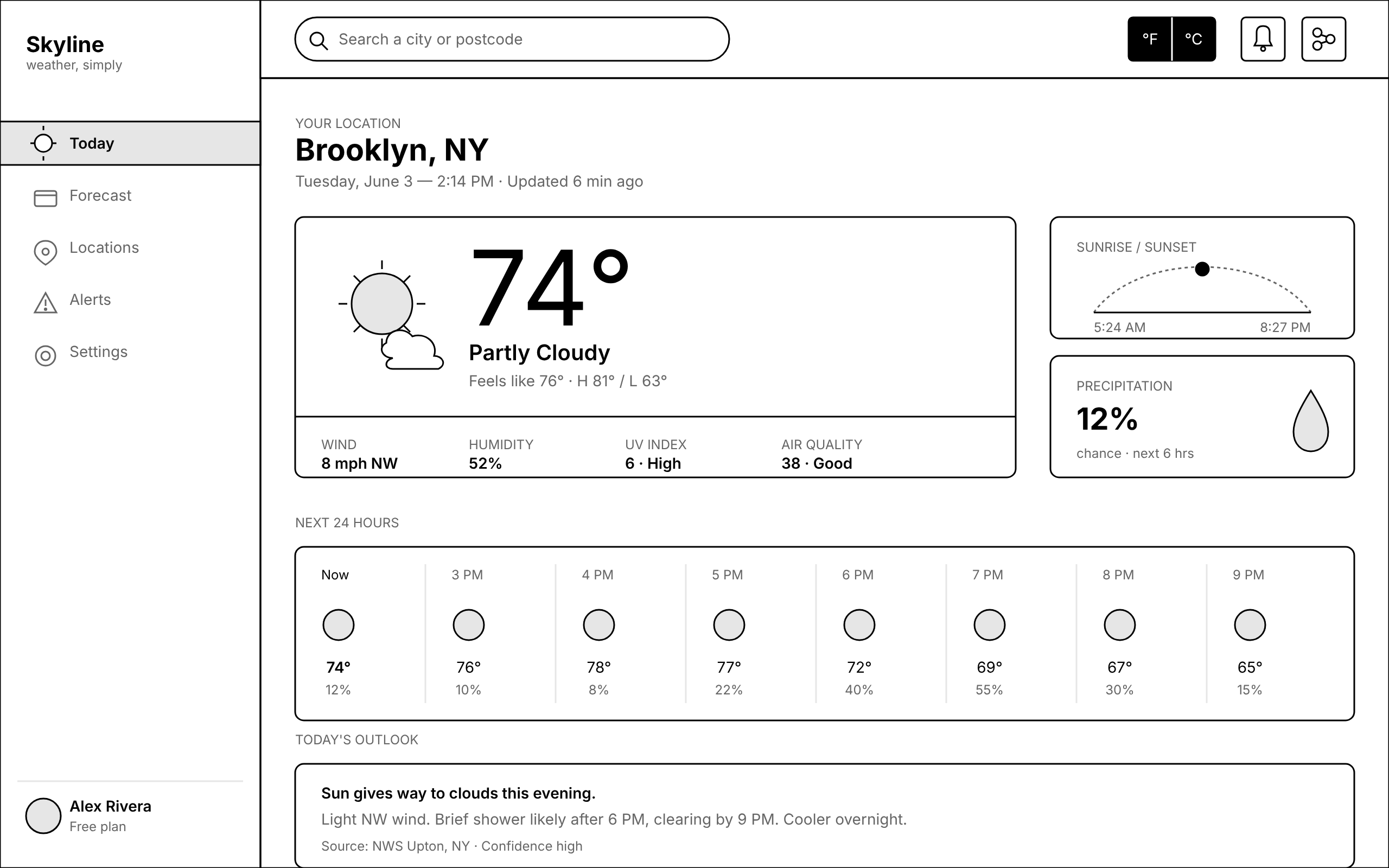
Here is the Today screen from the weather-app deck, desktop first:
And the same screen’s mobile variant:
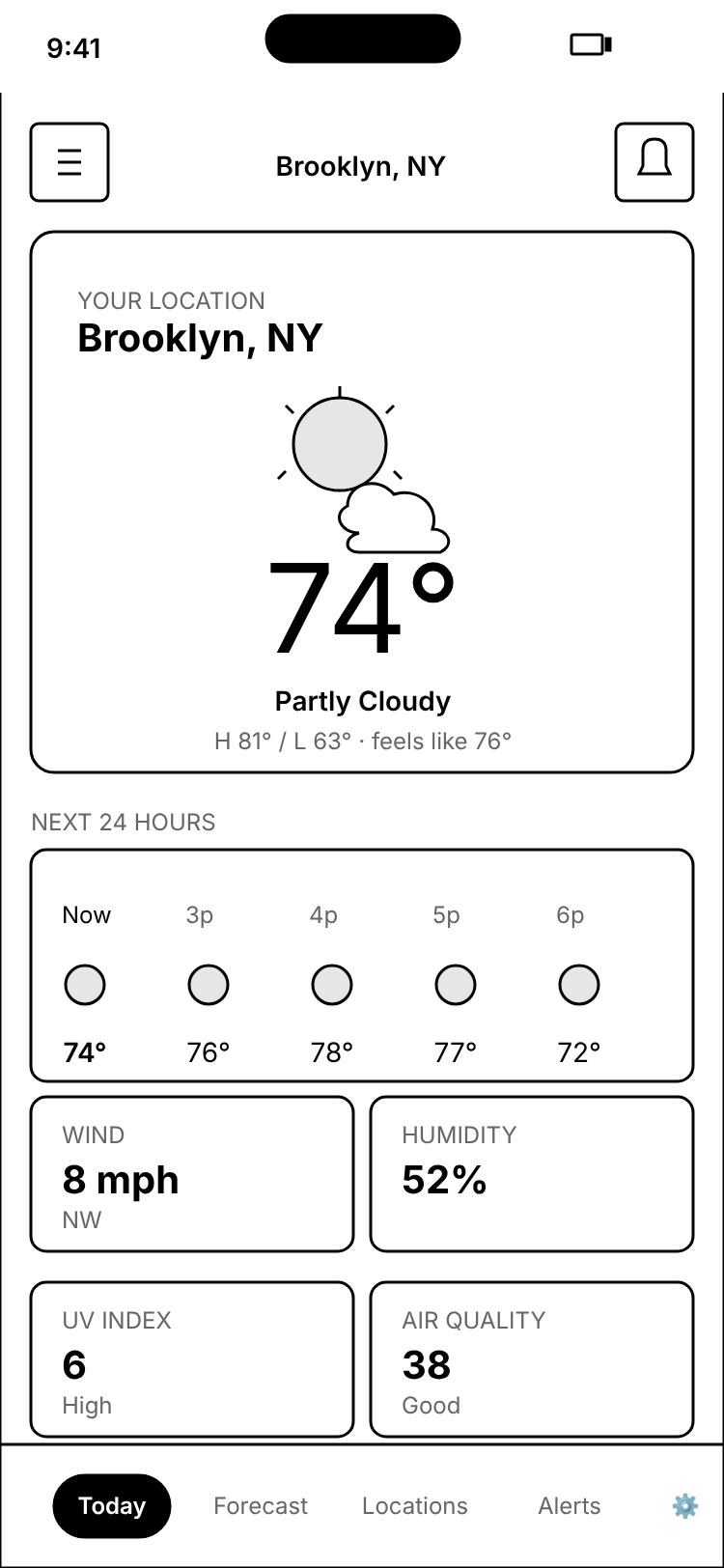
Every screen follows the same locked house style: black 1.5px strokes, white fills, #e6e6e6 placeholders, and a red-dashed annotation layer that never touches the UI itself. That constraint is what the low-fi format buys you in review: comments land on what goes where, not on colors, because there are no colors.
Expected result: ten screen SVGs plus a flow map (next step) in the agent’s workspace:
wireframes/
  01-today.svg       01-today-mobile.svg
  02-forecast.svg    02-forecast-mobile.svg
  03-locations.svg   03-locations-mobile.svg
  04-alert.svg       04-alert-mobile.svg
  05-settings.svg    05-settings-mobile.svg
  flow.svg
4. Read the flow map
For any multi-screen flow the skill also emits flow.svg: every screen as a thumbnail, arranged left to right with arrows between them. It is the one file to send someone who has thirty seconds.
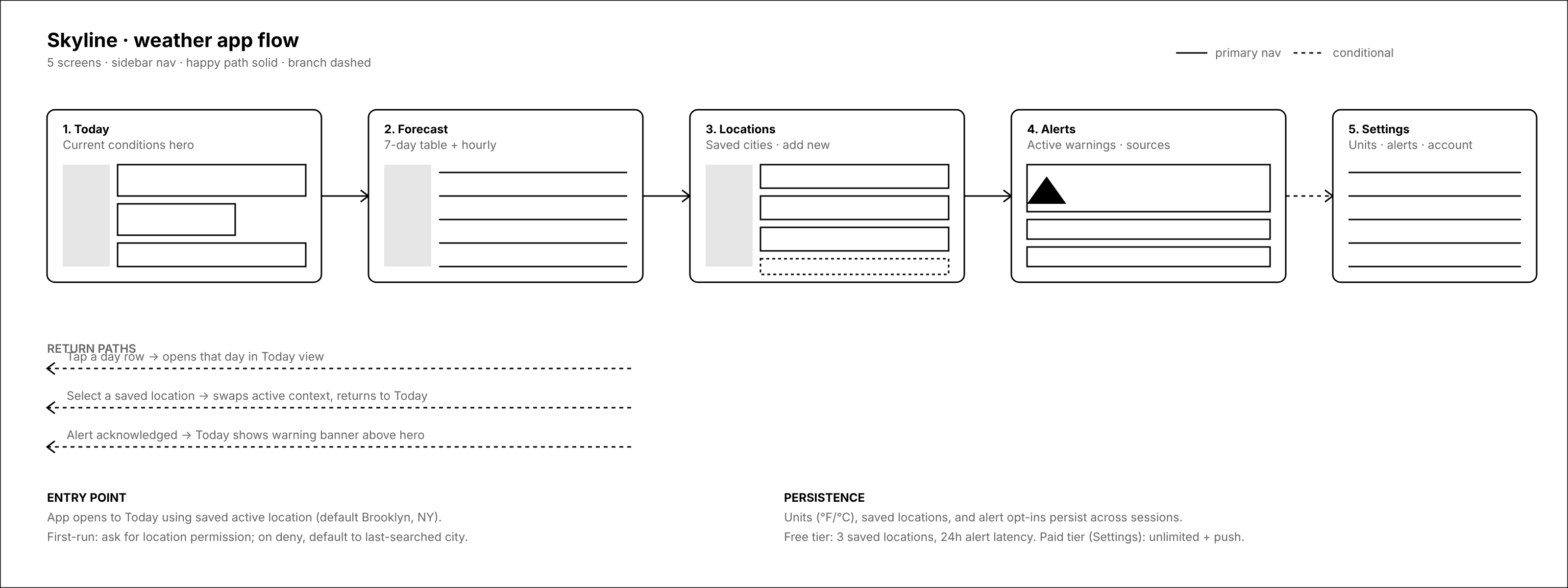
The weather app’s flow map draws the happy path solid and the conditional branches dashed, and it carries the decisions no single screen can: return paths (tapping a forecast row opens that day in the Today view), the entry point (the app opens to Today with the saved location), and what persists across sessions (units, saved locations, alert opt-ins). Reviewers catch flow-level mistakes here before they read a single screen.
5. Bundle the deck into a viewer
Ask the agent to “make a page to view the wireframes.” The skill builds one static index.html next to the SVGs from a template it ships: a sticky table of contents, the flow map near the top, one section per screen with its annotations, click-to-zoom on every wireframe, and an open-questions section at the bottom for the decisions still unsettled. It stays a static review surface; the skill explicitly refuses to grow it into a React app.
Expected result:
design/<task-slug>/
  index.html
  wireframes/
6. Publish it for review
Ask the agent to publish the deck. The wireframe skill defers hosting to the here-now skill and runs its publish script against the directory that contains index.html:
cd design/<task-slug>
{path-to-here-now}/scripts/publish.sh .
# → https://{adjective-noun-suffix}.here.now/
Without saved credentials the site is anonymous and expires in 24 hours, which is often exactly right for a review round. With a saved API key it is permanent, and republishing with --slug <existing-slug> keeps the URL stable across review rounds.
Verify it worked
Open the published URL (or index.html locally) and walk it once the way a reviewer would. Expected: the flow map renders full-width near the top; the table of contents jumps to each of the five screens; each screen section shows its wireframe with the numbered annotations beside it; clicking any wireframe opens the zoom lightbox and Esc closes it. If all five screens and the flow map render, the deck is complete: eleven SVG files behind one URL.
Troubleshooting
Problem: wireframe does not appear in the agent’s optional skills list.
Solution: it is not in the company library yet. Installation (step 1) is company-level; install from the catalog first, then return to the agent’s Skills tab.
Problem: the review site is gone the next day.
Solution: anonymous here-now publishes expire after 24 hours. Save a here-now API key and republish; with credentials the site is permanent, and --slug keeps the same URL.
Problem: you edited an SVG by hand and the text now renders with a halo.
Solution: <text> inherits the parent group’s stroke. Set stroke="none" and an explicit fill on text elements, the way every generated screen does.
Where to go next
- The wireframe skill reference carries the full skill definition: the house-style tokens, the primitive library, and the viewer template.
- The Skills guide covers the built-in catalog, importing skills from GitHub or skills.sh, and assigning skills to agents.
- Why a low-fi deck is the cheapest artifact a team can argue about: the launch post, Your agents can wireframe now.